Selecting
Selection tool (V)
Section titled “Selection tool (V)”Click or drag a marquee to select. Shift adds or removes.
The first toolbar button holds three Selection tools, and the one you choose decides what a click picks up. Click the button’s corner triangle, or hold the button, to choose. The button always shows the one in use.
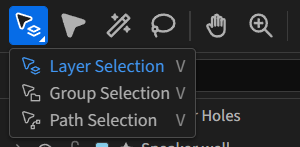
| Tool | A click selects |
|---|---|
| Layer Selection | The whole After Effects layer |
| Group Selection | The outermost group inside the level you are working in |
| Path Selection | The single path or shape |
V returns to the one you used last, and Shift+V cycles the three. A click always takes the topmost shape whose fill or stroke is under the pointer.
Pressing on something already selected drags the whole selection, whatever the target. This includes a selected object behind another: drag where they overlap to move the selected one. A click there still selects the object on top. With the Selection tool you can also:
- Alt-drag to duplicate. See Last Action.
- Shift-drag to keep the move on one axis.
- Use the transform box to scale and rotate. See Transforming.
Direct Selection (A)
Section titled “Direct Selection (A)”Selects points, tangent handles and segments. Drag to move them; marquee to select points.
- Shift-marquee adds points. Alt-marquee selects handles.
- Alt-drag a handle to break it from its pair. Shift-drag a handle to snap its angle to 45° steps.
- Ctrl-drag a point to slide it between its two handle tips, which stay put. This is the Slide value in Properties. Ctrl-drag a handle to change only its length.
- Hold Ctrl with any other tool to borrow Direct Selection for a moment.
Rectangles, ellipses and stars show their points too. Your first point edit converts the shape to a path, with a Shape Expanded notice.
Magic Wand (Y)
Section titled “Magic Wand (Y)”Click a shape to select every shape that matches it. The shape a click would sample highlights as you hover. The wand always selects the matching shapes themselves, never their groups or layers, whatever the Selection tool’s target.
In Properties, Select chooses what must match: Same fill color, Same stroke color, Same stroke weight, or Same fill & stroke.
Shift adds, Alt removes. Masks cannot be matched. The transform box switch is remembered separately for the Magic Wand.
With one shape selected, Select same fill and Select same stroke in the right-click menu make the same match without switching tools.
Lasso (Q)
Section titled “Lasso (Q)”Drag a loop around points to select them. Shift adds, Alt removes.
Select all and deselect
Section titled “Select all and deselect”Ctrl+A selects all. Ctrl+Shift+A or Escape deselects.
Working inside a group
Section titled “Working inside a group”With the Selection tool, double-click a group on the canvas to isolate it: everything outside dims, and clicks stay inside. Double-click again to go a level deeper, down to a path’s points.
To step back out:
- Press Escape with nothing selected to go up one level, or
- double-click empty canvas to leave isolation entirely, or
- click a level in the status bar’s breadcrumbs.
Right-click a layer or group in Layers and choose Isolate layer (or Enter group on a group) to enter it from there.
Locking
Section titled “Locking”Ctrl+2 locks the selection; Ctrl+Alt+2 unlocks everything. Both are also in the right-click menu as Lock selection and Unlock all. A locked item cannot be selected or edited, and clicks pass through it.
Locking a layer sets its After Effects lock switch when you push. Groups and shapes lock in Design Mode only.
Finding the selection in Layers
Section titled “Finding the selection in Layers”Press X to open and scroll the Layers list to the selected item.