Previews
Bundled previews
Section titled “Bundled previews”Preset Browser ships with previews for Adobe’s presets, so they show the moment you scan. Hover a card to play its preview.
Your own presets have no preview until you make one. A card without one says No preview.
Make a preview
Section titled “Make a preview”A preview is rendered from a preview comp that Preset Browser builds for you.
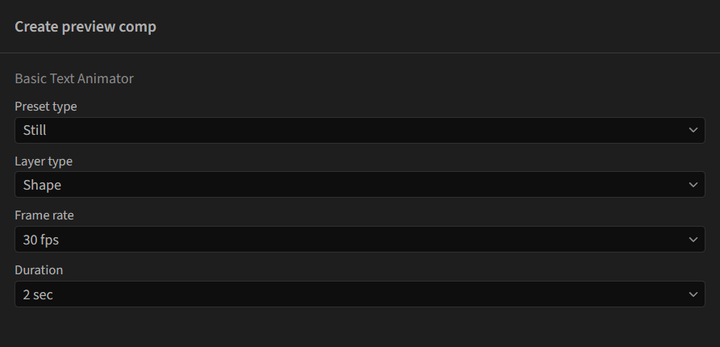
- Open the card’s three-dot menu and choose Create preview comp, or click Preview comp in the info pane.
- Choose the settings and click Create:
- Preset type: Animated or Still
- Layer type: Text, Image, Shape, or Solid, the layer the preset is applied to
- Image source (Image only): Selected project item or Import image
- Frame rate: 12, 24, 25, 30, or 60 fps
- Duration: 1 to 5 seconds
- The comp opens in After Effects, inside a Preset Browser Previews folder in your project. Adjust it if you like.
- Choose Save preview video or Save still thumbnail from the card’s menu, or click Preview video or Still thumbnail in the info pane.
The preview is saved at 480x270 and shows on the card right away. Saving one over an existing preview asks first.
If the preset could not be applied to the layer type you chose, the comp is still made: set it up yourself, set the work area, then save.
Saving a preview without a preview comp opens Preview comp required, which offers to create one.
Delete a preview
Section titled “Delete a preview”Delete preview in the card’s menu removes a preview you made. It only appears when the preset has one. If a bundled preview exists for that preset, it shows again.
Previews for a whole folder
Section titled “Previews for a whole folder”Each folder in the sidebar has a three-dot menu with:
- Create preview comps: one preview comp for every preset in the folder, with the settings above
- Save preview videos: renders the preview comps already in your project for that folder
- Save still thumbnails: the same, as stills
A preset with no preview comp is skipped, and the footer counts how many could not be saved.
Where previews are stored
Section titled “Where previews are stored”- Windows:
%APPDATA%\JakeInMotion\AEPresetBrowser\previews - macOS:
~/Library/Application Support/JakeInMotion/AEPresetBrowser/previews