Quick Start
The Starter Pack
Section titled “The Starter Pack”A fresh install opens on the Starter Pack — 29 working buttons in 6 folders, covering five of the six button types. Click around; everything in it is safe to run and easy to undo.
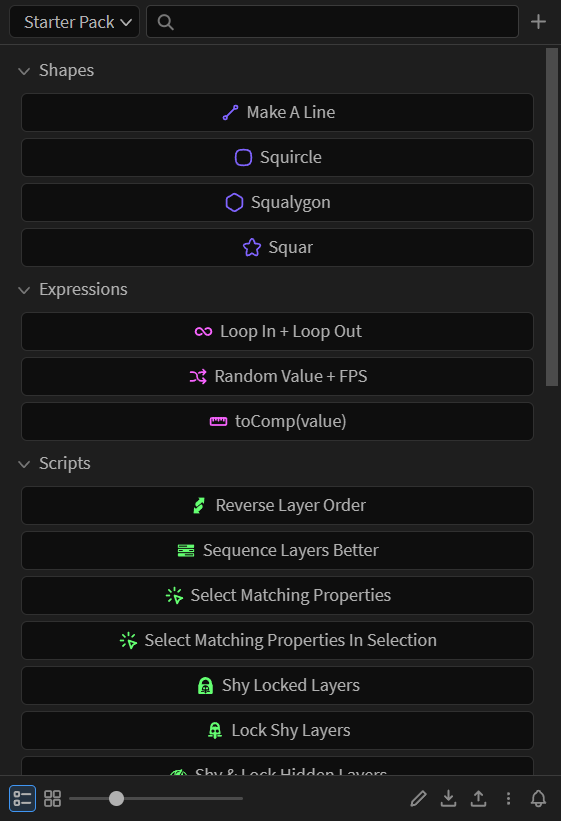
Run a button
Section titled “Run a button”Select the thing the button acts on, then click it:
| Button type | Select first |
|---|---|
| Script | Whatever the script expects |
| Expression | The properties to apply it to |
| Preset | The layers to apply it to |
| Menu command | Whatever that menu item needs |
| Ease | The keyframes to ease |
Click a folder to expand or collapse it. Folders can hold folders.
A button can also carry more than one action: hold Alt, Shift or Ctrl (Command on macOS) as you click, or long-press the button to see everything it can do. See Alternates.
Find a button
Section titled “Find a button”Type in the search box to filter. Folders holding a match open on their own.
Edit and rearrange
Section titled “Edit and rearrange”- Click the pencil to enter edit mode — clicking a button now edits it, and you can drag buttons and folders to rearrange them.
- Alt-click any button to edit it without turning edit mode on. On a button that binds Alt to an action of its own, Alt runs that action instead; edit mode and the right-click menu still open the editor. Alt-click editing can be turned off under Menu > Settings > Preferences.
- Right-click a button or folder for rename, duplicate, delete, and more.
Make your own button
Section titled “Make your own button”- Click + and choose Add button.
- Name it, pick its type, and add its content — code, a preset, a command, or an ease.
- Click Add button to save.
Or skip the editor entirely: drop files onto the panel. .jsx and .js files become script buttons, .ffx files become preset buttons — several at once, straight into whichever folder you drop them on.
See The Button Editor for icons, colors, and everything else a button can carry.